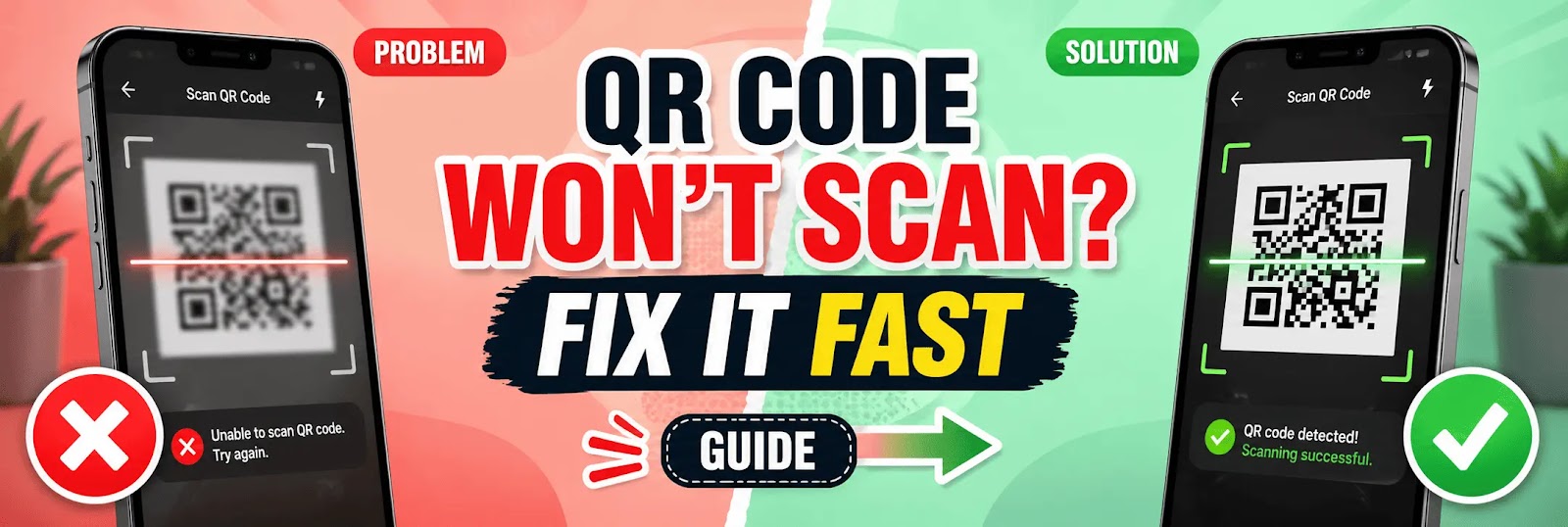
QR codes are designed to be fast and easy to scan, but sometimes they fail to work as expected. When a QR code won’t scan, the issue is usually related to quality, device limitations, or environmental factors.
Understanding the common reasons behind scanning failures — and how to fix them — helps ensure a smooth and reliable experience.
Common Reasons Why QR Codes Don’t Scan
Several factors can prevent a QR code from being detected or decoded properly.
Low Image Quality
Blurry, pixelated, or low-resolution QR codes are difficult to scan.
If the QR code is not sharp, scanners may fail to recognize the pattern.
Poor Lighting Conditions
Lighting plays a major role in scanning.
Too dark or overly bright environments can reduce visibility and affect detection.
Incorrect Size or Distance
A QR code that is too small or too far away may not be captured correctly by the scanner.
Maintaining proper distance improves accuracy.
Damaged or Distorted QR Code
If a QR code is partially covered, scratched, or distorted, it may not scan.
Even small damage can affect readability.
Low Contrast
QR codes require strong contrast between the foreground and background.
Light-on-light or dark-on-dark combinations reduce scannability.
Camera Limitations
Older devices or low-quality cameras may struggle to scan QR codes effectively.
Focus and resolution play a key role.
Unsupported Format or Content
Some QR codes may contain data formats that certain scanners cannot interpret.
Using a reliable scanner helps avoid compatibility issues.
How to Fix QR Code Scanning Issues
Fixing scanning problems usually involves simple adjustments.
Improve Image Quality
Use high-resolution QR codes and avoid compression.
Clear and sharp images scan more reliably.
Adjust Lighting
Ensure balanced lighting conditions.
Avoid reflections and extreme brightness.
Resize or Reposition the QR Code
Make the QR code large enough and keep it within the scanner frame.
Proper positioning improves detection speed.
Check for Damage
If the QR code is damaged, try to replace it with a clean version.
For digital use, always keep a backup copy.
Increase Contrast
Use dark QR codes on light backgrounds.
High contrast improves scanning accuracy.
Use an Online QR Code Scanner
A qr code scanner online can help detect QR codes from images or screenshots, even when camera scanning fails.
This method is useful for digital QR codes.
Try Another Device or Browser
Switching devices or using a different browser may resolve compatibility issues.
Scan QR Code from Image as a Solution
If the QR code cannot be scanned using a camera, using a scan qr code from image method can be more effective.
Uploading the QR code image directly allows the system to decode it without relying on camera conditions.
Best Practices to Avoid Scanning Issues
To ensure QR codes always work properly:
- Use high-quality images
- Maintain proper contrast
- Avoid distortion
- Test QR codes before sharing
- Keep backup versions
Preventing issues is easier than fixing them later.
When QR Codes Still Don’t Work
If a QR code still does not scan:
- Verify that the content is valid
- Check if the link or data is active
- Ensure the QR code was generated correctly
Sometimes the issue is related to the content, not the scanning process.
Final Verdict
When a QR code won’t scan, the problem is usually caused by image quality, lighting, or device limitations.
Most issues can be resolved quickly by improving conditions or using alternative scanning methods.
Conclusion
QR code scanning issues are common but easy to fix.
By understanding the causes and applying the right solutions, users can ensure reliable scanning across all devices and environments.